Hi @Jacqueline Turner,
To check my understanding, you are looking to schedule:
- A team meeting once every 2 weeks
- The 1st meeting must be in the week of the 5th -9th Jan
- If the meeting has to be split, limit the total number of sessions to 2
- Each meeting must have a minimum of 6 days between them
Let's take a look at the configuration:
- The initial start date is correctly set to the 5th of January. ✅
- The end date (for the initial occurrence is automatically set for the end of the 2 weeks ✅)
- Minimum Time Between Each Occurrence = 1 day ❌
- This should ideally be set to 1 week or 6 days.
- 1 week/6 days will ensure a buffer so that if a session becomes out of sync and were to be scheduled on the 18th (last day of the occurrence) the next session in the new occurrence won't be scheduled before the 24th
- Maximum Number of Sessions ❌
- This is a little confusing, and we needed to update the documentation to reflect this. The Maximum Number of Sessions is the total for the Activity Plan, not occurrences. When set to 2, as soon as 2 sessions have been scheduled, this could be 2 sessions in the 1st occurrence or 1 session in the 1st and 2nd occurrences, the Activity Plan becomes obsolete, as it is not possible to schedule a 3rd session. This was designed for capping sessions when you might have an external training contract for a set number of training deliveries.
- Best Practice for limiting the number of Team Meeting sessions is to set the minimum group size to half of the team size. In your example, you have set the min/max group size to 4 and 9, which would limit a Team of 9 to a maximum of 2 sessions per occurrence. ✅
Now, for how to lock in the scheduled sessions into the 1st of the 2 weeks.
- Under the Session Availability tab follow these steps:
- Add a date range constraint for the 5th -9th January at any time
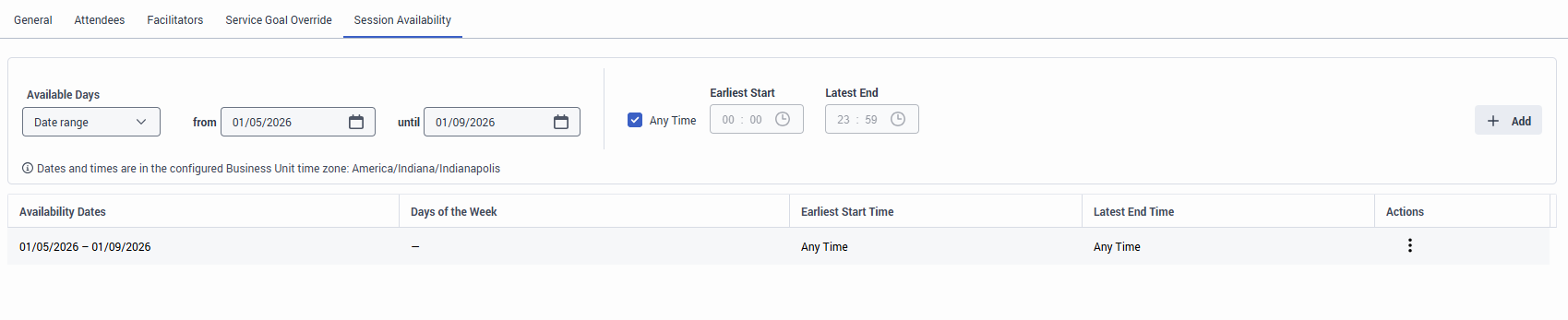
- Now save and run the Activity Plan for the 1st time.
- Once happy with the scheduled sessions, they have been added to a published schedule
- Edit the Activity Plan
- Remove the Session Availability Constraints
By adding the Session Availability Constraints for the 1st run, the Activity Plan is forced to schedule the Team meeting in the preferred schedule window. This will now set the cadence for the subsequent occurrences. With the second Activity Plan run, it will look to schedule the next session as soon as possible in the next 2-week period, with a minimum of 6 days/1 week between the last scheduled session. Providing there is headroom in the Service Goal prediction and Agent Availability is good, the session will typically fall in the 1st week.
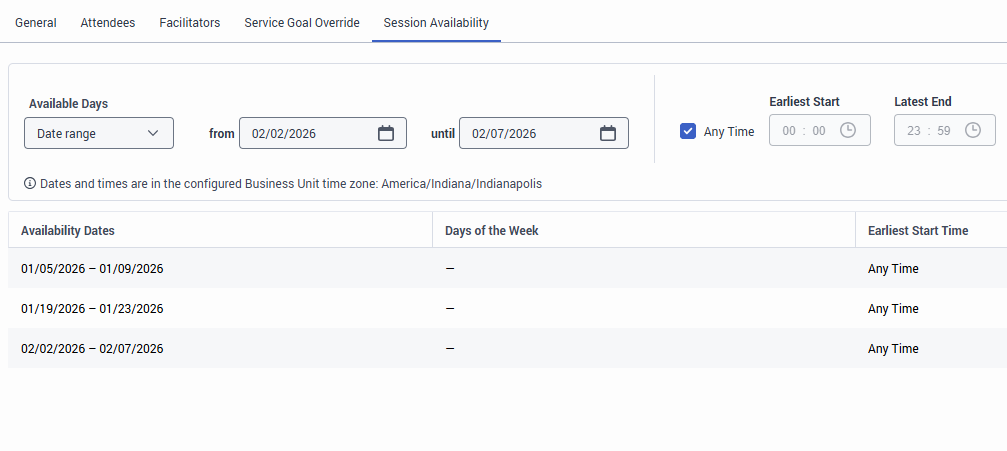
If you want to guarantee the cadence, you can add the fixed weeks for each occurrence to the Session Availability tab, like this:
Hope this helps,
Paul
------------------------------
Paul Wood
Product Manager for Genesys Cloud Workforce Management
------------------------------