
Hello community members
Making schedule changes for multiple agents or activities can be time-consuming, especially when plans change at short notice. Whether you're responding to operational changes, moving training sessions, or adjusting schedules after an unexpected event, editing each shift or activity individually can quickly become repetitive.
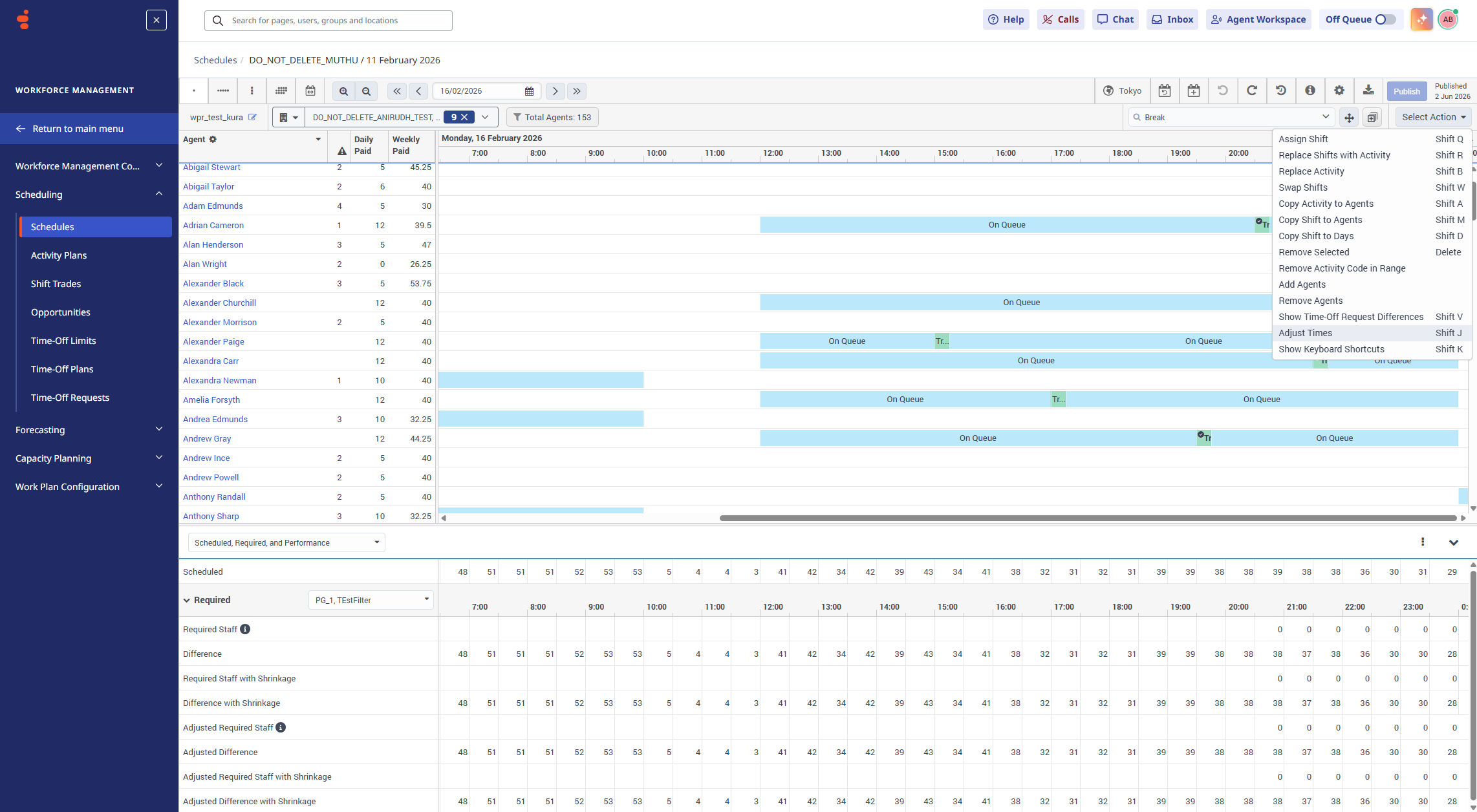
This week we're excited to introduce Adjust Times, a new Schedule Editor capability that allows Workforce Management supervisors to update the start times of multiple shifts and activities in a single action.
What's new?
With Adjust Times, you can:
-
Select one or more shifts, activities, or a combination of both.
-
Select multiple items using Ctrl (Windows), Command (Mac), or Shift.
-
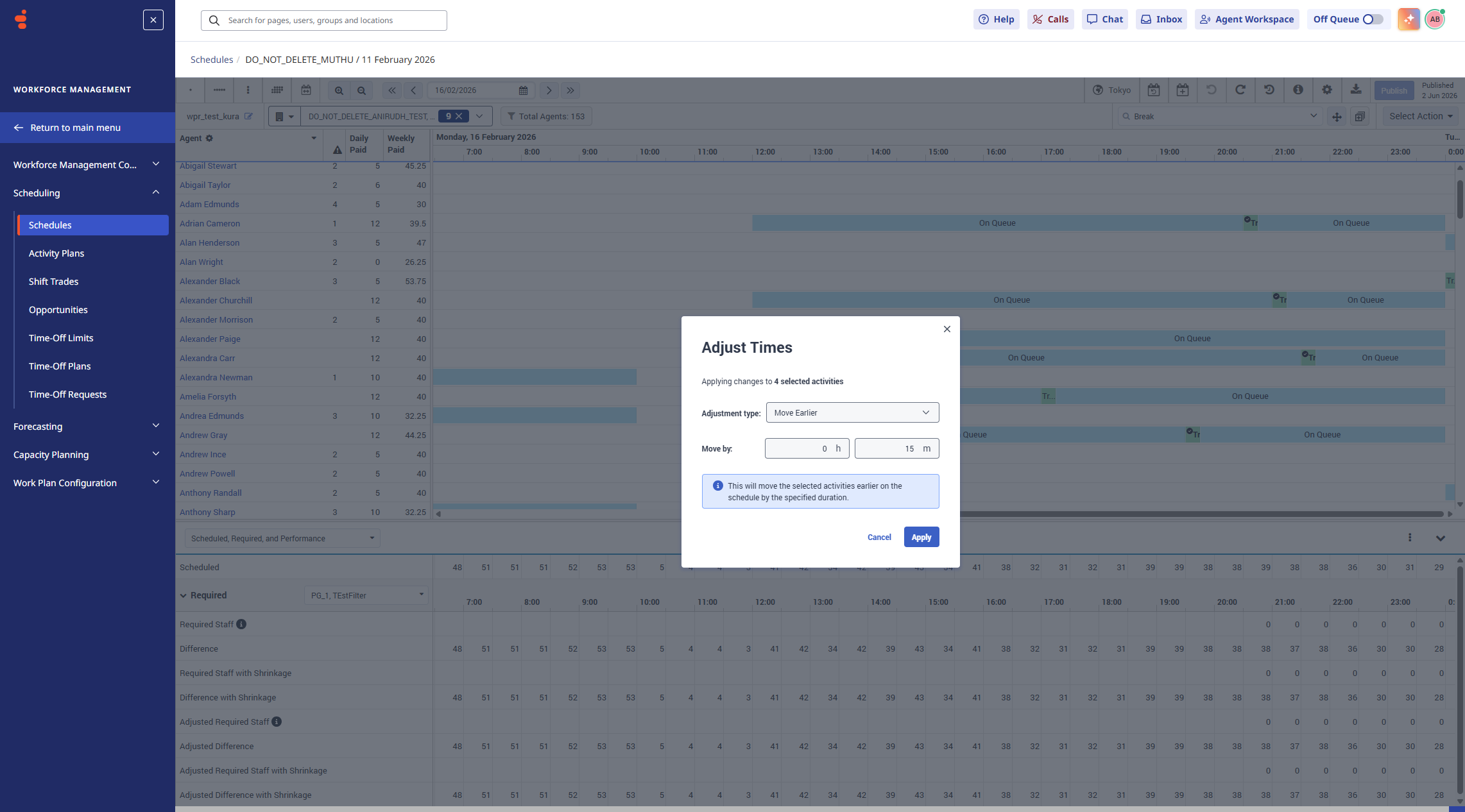
Move selected items earlier or later by a specified amount of time.
-
Move selected items to a specific date and time.
-
Apply changes to multiple schedule items simultaneously, helping reduce repetitive editing.
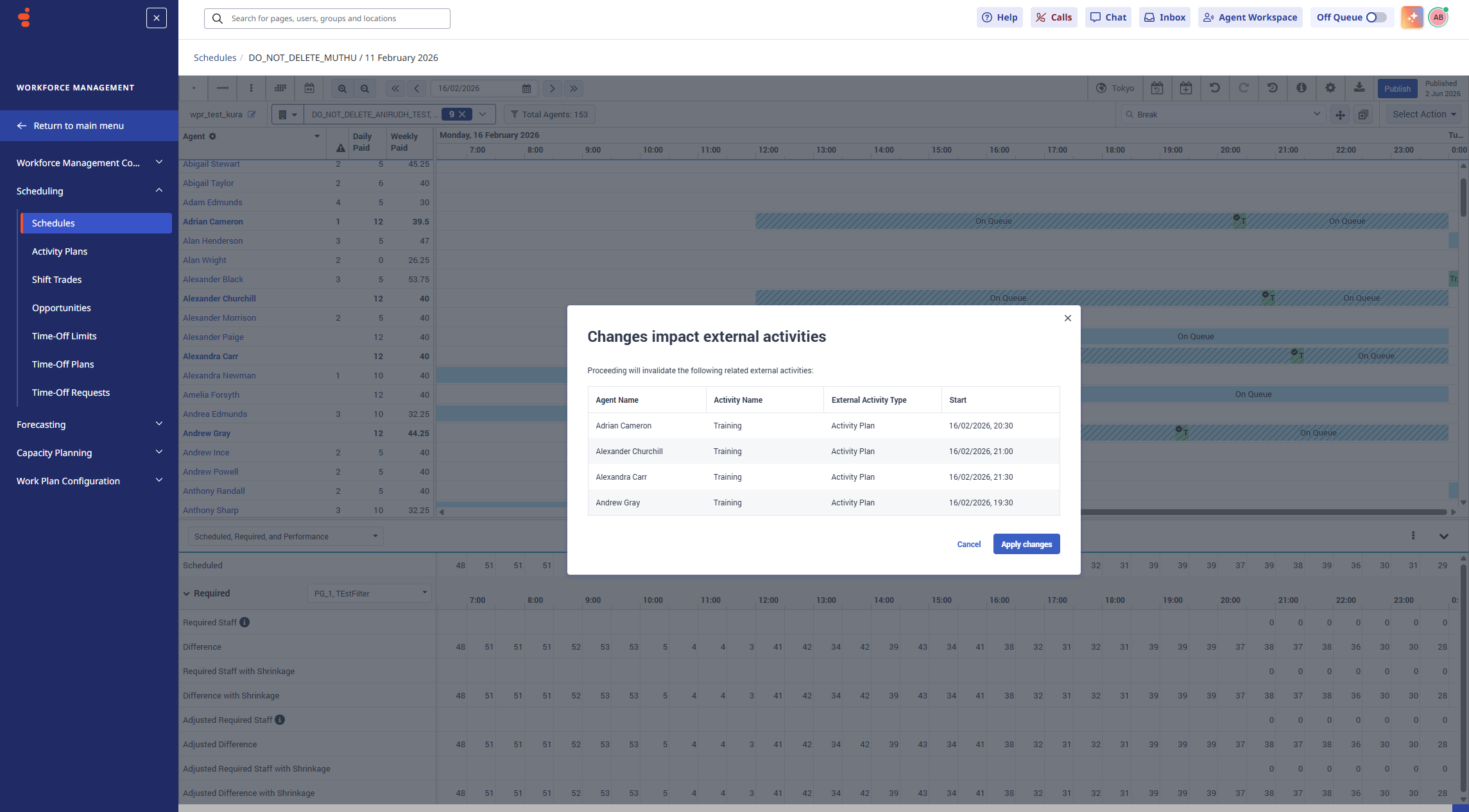
The feature also supports existing schedule behaviours, including linked activities and external activities, guiding you through any additional decisions with confirmation dialogs where required.
Why you'll find this useful
Instead of making the same adjustment repeatedly, supervisors can make large-scale schedule updates in just a few clicks.
For example, you can:
-
Delay several training sessions by 30 minutes.
-
Move multiple shifts after an operational change.
-
Update a combination of shifts and activities across one or more agents.
-
Adjust schedules more efficiently when plans change during the day.
How it works
-
Open a schedule in the Schedule Editor.
-
Select one or more shifts or activities.
-
Open the Select Action menu (or press Shift+J).
-
Choose whether to move the selected items earlier, later, or to a specific date and time.
-
Review any confirmation dialogs for linked or external activities, if applicable, and apply the change.
If your selection includes linked activities or external activities, Genesys Cloud displays additional dialogs so that you can decide how those activities should be handled before the adjustment is applied.
Learn more
For detailed instructions, supported scenarios, and information about linked activities, external activities, and validation behaviour, see Adjust times for shifts and activities in the schedule editor in the Resource Center: https://help.genesys.cloud/articles/adjust-times-for-shifts-and-activities-in-the-schedule-editor/
Thanks
#ScheduleManagement#WFMConfiguration,BestPractices------------------------------
Andy Boland
Product Manager
------------------------------