Hello All,
Not sure how many of you are aware of the new Genesys Cloud Copilot, a recently introduced AI assistant built directly into the Genesys Cloud platform. It helps administrators, supervisors, and other users perform tasks using natural language instead of navigating multiple pages. I recently explored the setup and thought I'd share the simple steps to enable it.
#AI #Genesys Cloud Copilot
Step 1: Create or use an existing role
Navigate to:
Admin → People & Permissions → Roles
- Create a new role (recommended), or
- Edit an existing role that you want to give Copilot access.
Step 2: Add these three permissions
This is the minimum required to make the Copilot icon appear:
- Copilot > Message > Send
- Copilot > Message > View
- Copilot > Session > View
These are the official prerequisites for enabling the new Genesys Cloud Copilot.
Step 3: Assign the role
Go to:
Admin → People → Users
Assign the role containing the Copilot permissions to the user.
Step 4: Sign out and sign back in
After the role is assigned, the user should sign out and sign back in (or refresh the session).
Step 5: Open Copilot
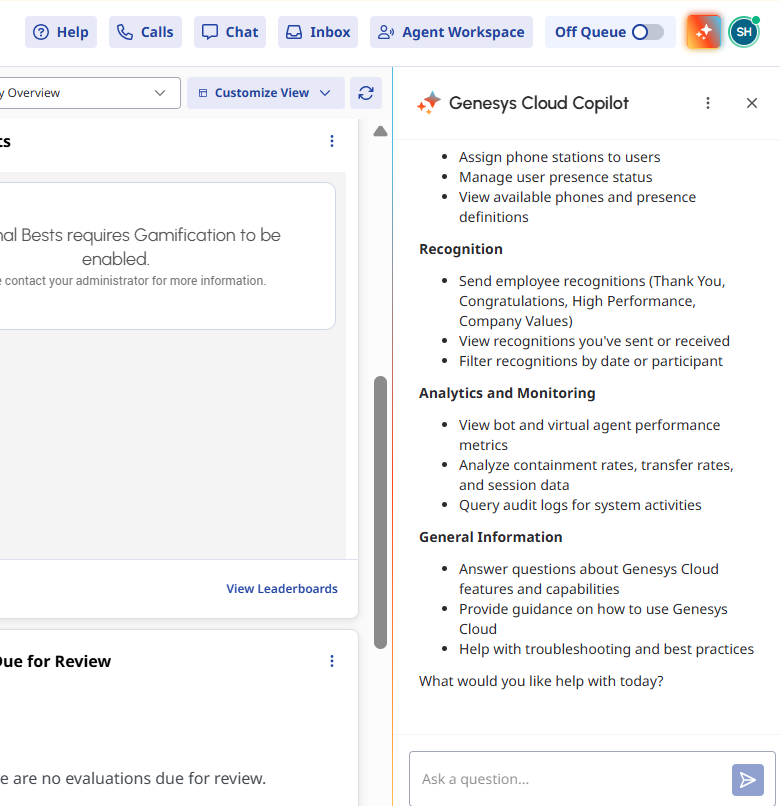
A Copilot icon appears in the upper-right corner of Genesys Cloud, next to the user profile. From there, users can start asking questions.
Please find UI screenshot for reference.
Also please find the official link: https://www.genesys.com/blog/post/meet-your-new-ai-team-member-genesys-cloud-copilot?utm_source=amplify&utm_medium=organicsocial&utm_campaign=1-27-0-en-cr-0-0-11may2026-copilot-sizzle-ga-blog&utm_content=copilotsMaster Genesys link
Thankyou,
Satish Huzuru
#Uncategorized
------------------------------
Satish Huzuru
Infra Transformation Associate Manager
------------------------------