My concise eBook for Genesys Cloud: AI – GPE & GPR certification exam including all below:
Genesys Cloud: AI – Predictive Routing – Getting Started
Genesys Cloud: AI – Predictive Routing – Configuration
Genesys Cloud: AI – Predictive Routing – Performance Reports
Genesys Cloud: AI – Predictive Engagement – Setup and Configuration
Genesys Cloud: AI – Predictive Engagement – Working with Action Maps
Genesys Cloud: AI – Predictive Engagement – Customer Journey for Agents
Genesys Cloud: AI – Predictive Engagement – Reporting and Analytics
===============================================================================
Genesys Cloud CX: AI - Predictive Routing - Getting Started
Predictive routing works in real-time using machine learning to optimize your key performance indicators (KPIs) and improve business outcomes.
But remember, each queue optimizes only one KPI.
There are 3 phases to activating predictive routing after the initial subscription and an optional free trial. They are: 1 Benefit assessment 2 Comparison test 3 Enable ongoing value monitoring or activate full time
To enable predictive routing at your organization, activate the Genesys Predictive Routing application from AppFoundry.
The benefit assessment determines high or low potential queues for optimization.
Note that the benefit assessment displays only the result with the highest optimization potential if a queue contains different media types with different optimization potential results.
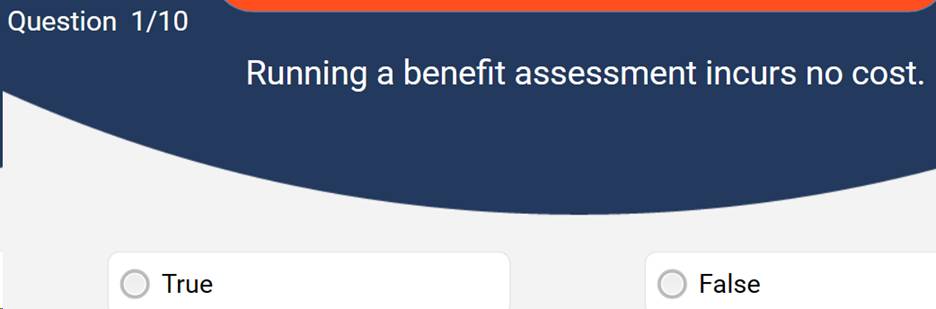
A benefit assessment run incurs no cost.
A benefit assessment checks whether:
• A queue has at least 900 inbound interactions in total and one inbound interaction recorded daily for 45 days within 90 days.
• The average call handle time is greater than 180 seconds, or the queue's call transfer rate is above 5 percent. Generally, the calls with shorter duration have a lower potential for optimization.
• The agent performance on a specific queue shows a sufficient variation to benefit from the predictive routing.
For robust results, each assessed queue must each have the following minimum numbers of interactions in the most recent 90-day period:
A comparison test compares your existing routing method directly with predictive routing.
Genesys Cloud CX routes your interactions in an hour-on, hour-off pattern during a comparison test.
Comparison test key Recommendations
• Run the comparison tests for at least two weeks.
• For queues sharing agents, run the predictive routing test on all the queues simultaneously.
• Wait for predictive routing to process and build your testing model when you start the comparison test, as predictive routing won't be available yet.
• Remember to save whenever you change the KPI.
Genesys Cloud CX stores comparison test reports for six months.
Performance > Workspace > Predictive Routing to view the Performance of Queues report.
Benefit assessment has no effect on routing,
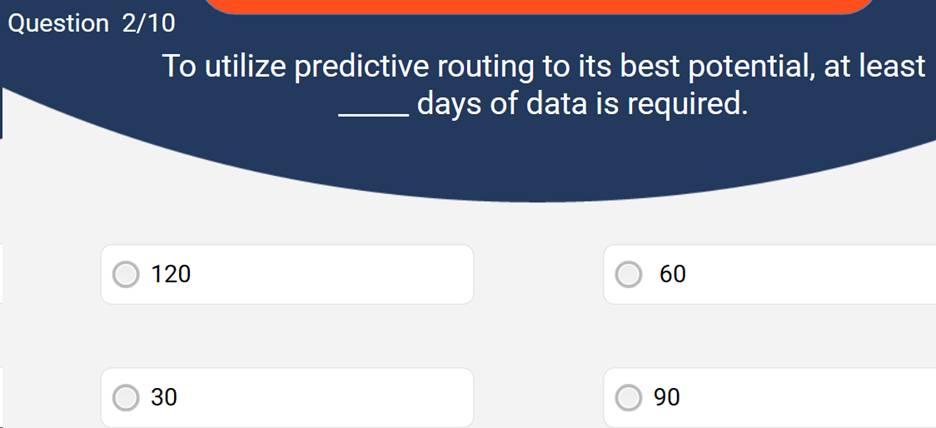
To utilize predictive routing to the fullest of its potential, at least 90 days (ideally 180 days) of data must be available.
GPR uses white-box models which clearly explain the features contributing to a prediction.
With the emergence of newer data models, old data models are automatically deleted from the system.
Whenever there is an inbound interaction, the scoring and ranking method predicts and filters the agent to have the most positive impact on the target KPI when handling that specific interaction. The highest scored agent ranks first.
Ongoing Value Monitoring : Having understood the purpose of applying predictive routing for your queues and its benefits so far, enable the predictive routing method to route interactions 80 percent of the time interval and the baseline routing method 20 percent of the time interval, by applying different routing methods with more inflow of data for predictive routing, the benefits of the usage of predictive routing increase.
Active Full Time: Once you have monitored the queues with different routing methods and determined the effectiveness of predictive routing, start using it to route all interactions on your queues.
AI - Predictive Routing - Configuration
Routing Methods: A queue's routing method determines how to match interactions and agents. The routing methods are:
• 1 Standard Automatic Call Distribution (ACD) – Routes interaction to the next available agent. This routing considers skills as specified by the evaluation method.
• 2 Predictive routing – Routes interaction based on AI analysis that matches the best available agent to the interaction.
• 3 Preferred agent – Routes interaction to a pool of preferred agents first.
• 4 Bullseye – Routes interaction to a targeted sub-queue of agents with specific skills. If these agents are unavailable, the pool of agents expands based on the queue configuration.
Evaluation Methods: A skill rating indicates the level of proficiency for each agent's ACD skill. Genesys Cloud CX uses agent skills and ratings for some ACD routing methods. The evaluation methods are:
• 1 Best Available Skills - ACD considers the 100 agents and selects those agents with all the required skills, the highest average skill proficiency, and the longest time since the last interaction.
• 2 All Skills Matching - ACD selects the agent who has all the required skills with the longest time since the last interaction.
• 3 Disregard Skills, Next Agent - ACD selects the agent with the longest time since the last interaction. Skills are not considered.
Predictive Routing Modes :
• 1 Run in Comparison Test Mode - Run comparison tests to compare predictive routing performance against your current routing method directly.
• 2 Use for All Queue Interactions - Use predictive routing for all interactions that the queue processes.
• 3 Ongoing Value Monitoring - Route interactions using predictive routing 80% of the time.
Predictive Routing Fallback Scenarios : An interaction that arrives in a queue with predictive routing enabled will be routed using a different routing method when:
• 1 The interaction timed out.
• 2 Predictive routing failed due to an error.
• 3 One of the test modes is enabled, and the system is in a 'predictive routing off' period.
The following matrix helps you understand the routing method when the specific scenario applies.
|
Predictive routing mode
|
Scenario
|
Routing method used
|
|
Predictive routing activated, standard routing as fallback
|
success
|
predictive routing
|
|
|
fallback – timeout
|
standard
|
|
|
failure – error
|
standard
|
|
Comparison test mode, predictive routing vs standard routing
|
predictive routing on, success
|
predictive routing
|
|
|
predictive routing on, fallback – timeout
|
standard
|
|
|
predictive routing on, failure – error
|
standard
|
|
|
predictive routing off
|
standard
|
|
Comparison test mode, predictive routing vs bullseye routing
|
predictive routing on, success
|
predictive routing
|
|
|
predictive routing on, fallback – timeout
|
standard
|
|
|
predictive routing on, failure – error
|
bullseye
|
|
|
predictive routing off
|
bullseye
|
Timeout is the maximum number of seconds that Genesys Cloud CX tries to route an interaction to an agent based on predictive routing score results.
Genesys Cloud CX first tries to route the call to the highest-scoring agents and gradually expands the agent pool to include agents with less-optimal scores.
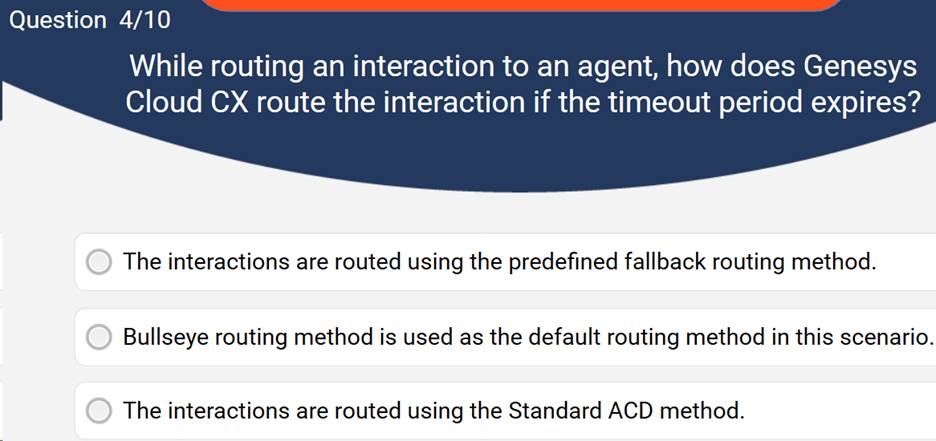
The timeout must be an integer between 12 and 259,200 seconds. When the timeout period expires, Genesys Cloud CX routes the interaction using the fallback routing method.
When setting the timeout, consider the average abandon time and any existing service level agreement (SLA) for the queue. For example, if the average abandon time is 120 seconds and the SLA is 85% of calls answered within 90 seconds, you can set the timeout to 80 seconds.
You can set a higher timeout value if the interaction can wait longer to increase the chance of finding a more suitable agent. The higher the timeout value, the higher the chances of interactions waiting in the queue even though agents are available.
You can set a lower timeout value when your priority is a shorter wait time, even if a less optimal agent handles the interaction. If the timeout value is lower, you may lose the benefit of predictive routing as interactions fall back to standard routing before an optimal agent becomes available.
Skill matching includes agent skill settings in predictive routing decisions for inbound interactions. You can turn skill matching on or off for individual queues.
Skill matching:
• Allows predictive routing to align with staffing schedules and traffic-level forecasts when routing interactions.
• Reduces the number of agents to whom the system can route the call. Skill matching could reduce the benefit of predictive routing.
Before you turn on skill matching, it is important to know that:
• Predictive routing only considers agents who match all the skills the interactions require.
• Predictive routing does not consider skill rating, as it may reduce the number of eligible agents drastically.
• Interactions transferred to another queue use the skill matching setting on that queue.
• Skill matching does not apply to the benefit assessment stage of predictive routing, even when the queue uses skill matching.
• Skill matching does not apply when the routing method changes to bullseye or standard routing. In that case, the skill evaluation of the comparative routing method applies.
• Skill matching does not apply when the interaction timed out and changes to standard routing (fallback routing). In that case, the skill evaluation of the fallback routing method applies.
Ongoing Value Monitoring: Once you start the predictive routing free trial, you can evaluate the ongoing value of using predictive routing on a queue using an 80:20 time split method. This method routes interactions using predictive routing 80% of the time interval and the baseline routing method 20% of the time interval.
Genesys recommends that you complete at least a 2-week, 50-50 comparison testing period and observe a desirable benefit.
Genesys Cloud CX: AI - Predictive Engagement - Setup and Configuration
Terminology Definition
Action An action represents the steps to engage with visitors or other related business outcomes.
Action Map An action map defines how you want Genesys Predictive Engagement to interact with a visitor based on the visitor's matching segments and your preferred outcomes.
Attribute An attribute is a condition that affects when action maps trigger and when users match segments and outcomes.
Operator An operator is an expression to define segments, outcomes, and action maps.
Outcome An outcome is business goals or objectives that help Genesys Predictive Engagement predict visitor's behavior.
Segment A segment is a group of visitors that share similar behavior or characteristics.
Visitor A visitor is a person who is looking at your website. A visitor may or may not correspond to an existing customer record.
The following are the high-level steps involved in the working of Genesys Predictive Engagement:
1 When a visitor visits the website, Genesys Predictive Engagement uses journey analytics to match the visitor to appropriate segments based on their behavior.
2 These segments, combined with predefined rules or AI outcome predictions, are used to trigger Genesys Predictive Engagement offers, such as an asynchronous chat offer to the visitor.
3 When the visitor accepts the chat offer, the sales representative or agent has complete visibility into the customer's journey up to that point. This information allows the sales representative or agent to understand the customer's needs better, connect with them, and provide the needed assistance.
To use Genesys Predictive Engagement with the web messaging feature, you must complete the initial tasks as mentioned below:
1 Fulfill the Genesys Predictive Engagement feature enablement, license, and permissions prerequisites.
2 Review the supported web browsers listed in the Genesys Cloud CX system requirements.
3 Prepare the required Genesys Cloud CX domains.
Domain Used for:
https://api.mypurecloud API resources
https://apps.mypurecloud Non-cached static assets
https://dhqbrvplips7x.cloudfront.net/ Cached static assets
https://login.mypurecloud/ Logging in users
https://login.use2.us-gov-pure.cloud Logging in users [Americas (US East 2)]
Americas (US East)
API domain: https://api.mypurecloud.com
Apps domain: https://apps.mypurecloud.com
Once the initial tasks are completed, you can proceed to the next steps. However, the below steps mentioned are elaborated in the upcoming modules.
4 Configure Genesys Messenger and deploy it to your website.
5 Configure web tracking.
6 Configure Genesys Predictive Engagement commands and events.
7 Create segments.
8 Create outcomes.
9 Create action maps.
Genesys encourages the use of the web messaging feature to replace web chat.
Genesys Messenger enables web messaging by providing a predefined Messenger window that website visitors (customers) use to interact with bots and agents.
You can create multiple Messenger configurations and choose which one to deploy.
Overview of Genesys Messenger configuration and deployment: Create a draft => Publish to create a new version => Assign a version to a deployment => Publish deployment
Two tabs: Appearance and Apps (Text format and features like typing indicators , Predictive Engagement and many more that enhance user experience).
Deploy the Messenger snippet to your website : Paste the snippet to the <head> tag of all of your webpages.
To configure web tracking, navigate to Admin > Predictive Engagement > Global Settings. The Global Settings page appears with the Tracking Settings tab open. The following are the web tracking settings that you can configure:
Allowed Domains: You can identify the website domains from which to accept web traffic. You can also configure the domains while creating a deployment Messenger. For details, refer to Step 7 from Deploy Messenger(opens in a new tab).
Exclude IP Addresses: You can exclude IP addresses (up to 10 IP filters) for which you don't want Genesys Predictive Engagement to generate web events. If you are not sure what IP addresses to exclude, check with your network administrator and watch incoming traffic on your website logs.
Short ID Length: You can configure the number of digits for Genesys Predictive Engagement to use for each visit ID. Genesys Predictive Engagement assigns each visit with a unique number based on a lengthy, automatically generated ID. You must choose a short ID length that is long enough to be unique among all current active visitors on your website. Note: However, Short ID Length is not widely used.
Exclude URL Query Parameters: You can specify any URL query parameters for Genesys Predictive Engagement to ignore.
Keep URL Fragments: You can configure whether Genesys Predictive Engagement can use URL fragments to identify web pages.
· You must keep in mind that the configuration of 1 Exclude URL Query Parameters and Keep URL Fragments may lead to overly specific tracking data. 2 They also can potentially expose personally identifiable information, violating General Data Protection Regulation (GDPR).
Site Search Settings: Each time a visitor searches on your site, the URL for your webpage changes. Since Genesys Predictive Engagement tracks URL changes, the information about each visitor's specific searches can appear as part of the customer journey data. You can configure the URL search parameter in your website based on the search terms.
In the Tracking Settings tab, under Allowed Domains, click Add Domain. Specify a domain and click the check mark.
Note:
1 You can click Add more to specify more domains. You can also edit or delete a specified domain.
2 Once you have configured Allowed Domains, click Live Now (See who is active on your website) from the left side to verify the events tracking. After the event verification, you can configure the rest of the web tracking settings.
Under Keep URL Fragments, select No so that Genesys Predictive Engagement does not use URL fragments to identify web pages.
Note: Enable this option only if you wish to track URL fragments.
Under Site Search Settings, click Add term. Specify a search term and click the check mark.
Note: You can click Add more to specify more terms. You can also edit or delete a specified search term.
Choose a short ID length that is long enough to be unique among all visitors that are active on your website currently. The more traffic your site gets, the longer your short ID should be. For example, if you always have less than 10,000 visitors at any time, a short ID length of 4 will suffice. If you could have more than 100,000 visitors at any one time, choose a short ID length of 6.
Web developers configure Genesys Predictive Engagement commands and events to track specific website activities, such as a button click or a time on the page.
To use Genesys Predictive Engagement commands and events to track website activity, do the following:
1 Load the Genesys( ) global function.
2 Subscribe to the Journey.ready event and verify (in your console log) that the Journey plugin is working correctly. Also, it is recommended to use the Journey.ready event for all configurations made using Journey plugin commands such as Journey.record, Journey.formsTrack, and many more.
3 Use the Journey.pageview command to track page views based on URL changes.
4 Use the Journey.record command to record custom web events.
The Genesys() global function allows you to easily call plugin commands and subscribe to events. For example, you can use it to hide the launcher button in the Launcher plugin and record custom events in the Journey plugin. For the list of the available plugins and their associated commands and events, refer to Commands and Events(opens in a new tab).
Genesys() is bundled into the genesys.js bootstrap file, which you load into your website when you deploy Messenger. For further details, refer to globalFunction(opens in a new tab).
For details on subscribing to events and enabling console logging, refer to Subscribe to events(opens in a new tab).
For details on Journey plugin events such as Journey.ready and for details on Journey plugin commands such as Journey.pageview and Journey.record, refer to Journey plugin under Commands and Events(opens in a new tab).
Attributes are conditions that affect when action maps trigger and when you match segments and outcomes.
You create attributes to specify when:
* A visitor matches to a segment.
* A visitor achieves an outcome.
* An action map triggers.
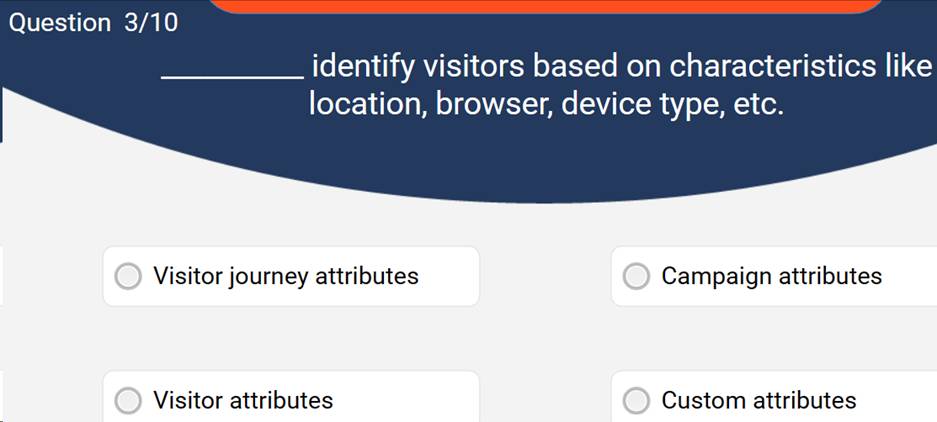
Visitor attributes identify visitors based on characteristics (that all users in the group share) like location, browser, device type, and many more.
You can add new visitor attributes, edit them, or even delete them if needed. To add a visitor attribute:
1 From the Orchestration>Enrichments>Customer Segments page, under Predictive Engagement, click Segments. The Segments page appears.
2 Click Create segment. The Create segment section appears.
Callouts_ForYourInformation copy 2.svg
You can also add a visitor attribute by clicking Orchestration>Enrichments>Outcomes > Create outcome or Action Maps > Create action map and following the similar steps below.
3 Under Orchestration>Work Automation>Custom Attributes, click Add first attribute.
4 From the dropdown list, select the attribute such as Device category, Device Type, or OS family.
5 From the dropdown list, select the operator as equals, not equals, like, not like, starts with, or ends with.
6 In the textbox provided, enter a value.
7 Click the checkmark. The visitor attribute is added.
8 Click Add next attribute to add another visitor attribute by following the above steps.
Campaign attributes enable tracking visitor behavior on campaign websites using Urchin Tracking Module (UTM). This attribute allows you to use UTM parameters to track web activity for a specific campaign.
From the dropdown list, select the campaign attribute such as Campaign source, Campaign term, or Campaign content.
Visitor journey attributes are actions that visitors take on your website. These attributes help you identify visitors based on their shared behaviors. When you define a condition that includes a visitor journey attribute, Genesys Predictive Engagement matches visitors depending on their actions. For example, a visitor journey attribute might include all visitors who added a product to their shopping cart but did not complete the transaction.
From the dropdown list, select the visitor journey attribute such as Event name, Page URL, or Page title.
Custom Attributes While creating segments, outcomes, and action maps, custom attributes allow you to identify groups of visitors based on characteristics and behaviors specific to your business. Custom attributes are additional information you want to send to Genesys Predictive Engagement.
From the dropdown list, select Custom attribute.
In the textbox provided, enter a custom attribute name.
Segments help you identify and classify visitors based on their shared behavior or characteristics.
To create a segment, navigate to Orchestration> Enrichments > Customer Segments. The Segments page appears. Next, click Create segment. Under Create segment, enter a name and give a brief description for the segment you are creating. Then, define as many conditions required for the segment. On specifying multiple conditions, the segment matches a visitor only when all the conditions match.
Once you have reached the limit of 500 segments, delete an existing segment to create a new one.
Here are a few best practices for improving how you create segments:
· Create segment-based conditions with a specific action map in mind. Group them logically and define them in the correct sequence.
· Specify at least one condition while defining a segment.
· Use a combination of segment-based conditions and outcome-based conditions. However, conditions are not shared across segments and outcomes.
· The more conditions you define, the fewer visitors match the segment.
Segment reports help you evaluate metrics on specific segments of visitors and how you are engaging them. You can view segment metrics from the Journey Segments tab.
From the Segments page, click the here link. The Journey Segment Performance view appears with the Journey Segments tab open. (GC Analytics Journey category. )
The Visitor Activity report evaluates the number of visitors to your website during a given period. It allows you to track usage trends and see the number of visitors at specific times.
From the Orchestration> Predictive Engagement>Visitor Activity Report. The Visitor Activity page appears with the data on sessions on your website.
<script> ac('record', 'timeOnPage6Secs');</script>
\Note: Here ac('record',) is your function name and 'timeOnPage6Secs' is the name of your event tag.
Adobe Launch uses Custom Code: ac('record', 'timeOnPage6Secs')
Outcomes are business goals or objectives that help Genesys Predictive Engagement predict visitor's behavior.
It is best practice to train your machine learning models before they make predictions.
To create an outcome, navigate to Orchestration> Predictive Engagement>Enrichments> Outcomes. The Outcomes page appears. Click Create outcome. Under Create Outcome, enter a name for the outcome you are creating, and give a brief description. Then, define one or more outcome conditions. On specifying multiple conditions, the outcome matches a visitor only when all the conditions match.
You can view real-time outcome scores for visitors by clicking Live Now from the left side. The Live Now page shows the list of currently active sessions with live tracking information.
A solid green bar indicates that the visitor has achieved the outcome. A bar with green and red indicates that the visitor has not yet achieved the outcome. The amount of green indicates approximately how close the visitor is to achieving the outcome.
You can view outcome metrics from the Journey Outcomes tab. From the Outcomes page, click the here link. The Journey Outcome Performance view appears with the Journey Outcomes tab open.
Export view data: Use the Toggle export panel icon to export the data from the selected view as a CSV file or PDF report delivered to your inbox in Genesys Cloud CX. You can also use the Schedule export option to schedule an export to run in the format most beneficial for you.
Customize the Journey Outcomes view to show only certain data. For example, you can choose to show only certain columns to see certain types of outcome metrics. Your customizations remain in effect even if you leave and return to the view. You can also save your column settings as a saved view to switch quickly between different data of interest in the same view. The custom date range option in this view has a maximum length of 93 days. The date range filter applies to when visitor activity starts. Current visitor activity that started before the date range is not included in the outcome metrics.
An action map represents the steps that Genesys Predictive Engagement takes to engage with customers.
Action: For each action map, you must have an action. An action represents the steps to engage visitors
Trigger: When creating an action map, you must define its trigger, determining whether the action map is qualified. A trigger is a condition that causes Genesys Predictive Engagement to offer an action map to a particular visitor.
Qualified action map: When a trigger determines an action map as qualified, it means that Genesys Predictive Engagement could offer the action, depending on the other offer-related conditions.
Offered actions map: A qualified action map is offered to a visitor based on the following considerations: priority, URL, timing, schedule, and activation status.
Below is the image that shows the high-level steps to create an action map: Name, priority, action to take, trigger, Outcome probability, Web pages to trigger on, Agent schedule to use, Frequency capping override.
Genesys Cloud CX: AI - Predictive Engagement - Working with Action Maps
Action maps help to improve and enhance the customer's journey and achieve the desired business result.
Action maps are steps or instructions offered by Genesys Predictive Engagement to potential customers to achieve a particular result.
A qualified action map is an activity that engages the customer based on various configured conditions. While creating an action map, you will also define the trigger. This trigger determines when an action map is qualified and gets offered to the customer.
While the customer is navigating through your site, there is a chance for multiple action maps to qualify in a session, resulting in multiple actions offered to the customer. You can control the number of offered actions using the Frequency Capping settings. Ideally, an action map can qualify only once per session.
While configuring the action for your action map, you can specify the time range when the action map qualifies. Leave the End date field blank to trigger the action map indefinitely.
The action map must be active for it to be offered to a visitor. By default, an action map gets activated immediately, but you also have a few options for customization.
Many factors determine the offering of action maps to customers. The factors are:
PRIORITY: If multiple action maps are qualified for offering, then the priority value determines which action map is offered to the visitor. A higher priority value allows you to override similar action maps.
URL: You can apply an action to specific webpages. The actions can be web-based and include web chats, web messaging, and content offers.
SCHEDULE: For action maps that offer web chats, you can select the schedule that defines when to offer chats to customers.
The following are the best practices to consider while creating an action map:
1 Use the outcome scoring probability to track the customer's action.
Do not offer actions while they are progressing toward the business outcome.
Configure action maps to intervene when they are not on track to achieve the outcome.
2 Configure searching on your website to use the site search settings.
Genesys Predictive Engagement tracks every change in URL.
Whenever a customer searches on your website, the search term gets appended to the URL and becomes part of the customer journey data, thereby aiding in web tracking.
3 Genesys Predictive Engagement tracks the following actions of a visitor:
Completed fields in a form.
Searches for something.
Responds to a chat offer.
Does not respond to a chat offer.
4 Genesys Predictive Engagement also tracks custom web events.
You can define these custom web events, and some of them include the customer adding items to a cart, removing items from a cart, scrolling to the bottom of the webpage, receiving an error message while submitting a form, and so on.
You can configure action maps to trigger when one of the custom events occurs.
5 Please note that the priority of an action map determines when it gets triggered. If there are multiple action maps on a webpage, the priority of an individual action map is relative to the priorities of other action maps.
High-Level Overview of Action Map Creation:
Action Map name=> Action Map priority=>Action to take=> Action Map trigger=>Webpages to trigger on=>Agent queue to route to=>Agent schedule group to use=>Frequency capping override
If an action map uses a web action, set the priority to ensure that visitors see an appropriate number of web-based offers. If multiple action maps are qualified for a given visitor and trigger combination, Genesys Predictive Engagement selects only one action map based on its priority relative to any other action maps that you applied to the same webpage.
For each type of web-based offer, Genesys Predictive Engagement uses only one action map for a given segment, at a given time, on a given webpage.
Multiple web-based offers
1 Genesys Predictive Engagement handles each type of web-based offer separately.
· Example (multiple content offers or multiple web chats): If a visitor qualifies for multiple content offers or multiple web chats, Genesys Predictive Engagement chooses the action map with the higher priority.
· Example (one content offer and one web chat): If a visitor qualifies for both a content offer and a web chat, the visitor sees both offers.
In addition:
· If multiple action maps target the same segment at the same time, and they have the same priority, Genesys Predictive Engagement displays each action map a set percentage of the time. For example, if two action maps exist, Genesys Predictive Engagement displays each one 50% of the time. If three action maps exist, Genesys Predictive Engagement displays each one 33% of the time.
· If a visitor ignores an invitation to chat, but then goes to a web page where a higher priority action map is set to trigger, Genesys Predictive Engagement presents the visitor with the invitation to engage.
Some actions, such as Architect flows, do not engage a visitor directly. For these actions, the action map priority is not considered. For example, if multiple Architect flows qualify for a page, all those Architect flows run.
Before creating an action map, ensure that the following permissions are enabled in Genesys Cloud CX:
Journey > Action Map > Add, Delete, Edit, and View
Journey > Action Target > View
Deploy one of the following to use the action maps:
· For Genesys Cloud CX customers using web messaging, configure and deploy Genesys Messenger.
· For other customers, deploy the tracking snippet on your website.
Create at least one segment where you need to trigger the action map.
Create an outcome to detect the change in the behavior of the visitor.
Triggers are conditions that you specify while creating an action map. These conditions determine whether the action map qualifies for a visitor. You can have multiple action maps for the same webpage, but an individual action map cannot trigger multiple times for the same visitor in a single session.
Genesys Predictive Engagement offers the following actions:
Web messaging
Web chat
Content offer
Advanced Orchestration (Architect flows)
Among the offered actions, the Advanced Orchestration does not engage with the visitor directly. For action maps with this type of action, the priority value will not play a role in determining the offer.
For the other types of actions (web messaging, web chat, and content offer), Genesys Predictive Engagement allows one action map for a given segment, at a given time, and on a given website.
Multiple content offers and multiple web chats:
In this case, Genesys Predictive Engagement chooses and offers the action map with a higher priority value.
One content offer and one web chat:
In this case, Genesys Predictive Engagement offers both action maps.
Multiple web actions for a particular segment and the same priority level for each:
In this case, Genesys Predictive Engagement offers each action map proportionately. If four action maps qualify for a visitor, then Genesys Predictive Engagement displays each offer 25% of the time.
Visitor ignores chat invite and visits webpage with higher priority action map:
In this case, Genesys Predictive Engagement chooses and offers the action map with a higher priority value.
Audience Reach:
Your contact center must have the segment and outcome data for at least seven days to view the audience reach estimator data. This data provides an overview of the number of qualified actions for each segment and outcome in a widget. Based on this historical data, you can view the impact of modifying the segments and outcomes for your action maps and act accordingly.
You can trigger action maps based on the following:
SEGMENT MATCH: While configuring the trigger, you can use this option to select one or more segments. The action map triggers when a visitor's journey data matches the selected segment(s). If there is more than one segment selected, the action map triggers if any one of the segments matches the visitor's journey.
USER ACTIVITY: Before using this triggering option, ensure that you have deployed the Genesys Predictive Engagement tracking snippet to the header section of the webpage. By default, this snippet tracks the user activity and standard web events on the webpage. You must use ac('record') in the code snippet to track custom web events.
Select the Session type and define the conditions for the trigger. If you define more than one condition, Genesys Predictive Engagement evaluates them in the order of creation, and the action map triggers only when all the defined conditions are met.
Let's see an example of how you can trigger an action map based on user activity. Assume that we define the Session type as Web, and the activity details condition includes Page viewed, and visitor action equals clicking a video. Whenever a visitor accesses the webpage and clicks the video on the given webpage, this user activity triggers and qualifies an action map for the visitor.
OUTCOME PROBABILITY: By defining the chances of a business outcome, you can trigger action maps. There are two sliders available to define the outcome probability. You can use the Set likelihood to achieve outcome slider alone to minimize the probability of an outcome. Whereas to maximize the outcome probability, use both sliders.
Remember that you can define a trigger by combining outcome probability with either segment match or user activity. But you cannot combine segment match and user activity to define a trigger. To improve your results, set the sliders at an approximate position and observe the impact of the trigger. Adjust the slider and compare the results until you achieve the desired result.
Genesys Predictive Engagement provides various actions that can be configured, customized, and offered to customers.
As we learned earlier, Genesys Predictive Engagement offers the following actions:
- Web messaging
- Web chat
- Content offer
- Advanced Orchestration (Architect flows)
Web Messaging
Genesys Predictive Engagement offers web messaging action to provide customers with an enhanced user experience while visiting your website. Web messaging allows your visitor to access your website, start a conversation with a bot or an agent, and return later to pick up the same conversation.
For agents, Genesys Predictive Engagement offers the option to view the entire customer journey as part of the interaction. Hence, the agent can continue the conversation from where it was left.
Supported Browsers for Web Messaging
Web messaging actions support the following browsers:
Desktop browsers:
Microsoft Edge Chromium
Google Chrome
Firefox
Safari
Mobile browsers:
Google Chrome on Android
Safari on iOS
Migrating from Web Chat to Web Messaging
The web messaging feature replaces the web chat feature in Genesys Cloud CX. For deploying, you must configure web messaging and Genesys Messenger in Genesys Cloud CX. Then, deploy the Messenger snippet on your website to track user activity.
Web Chat
The web chat action allows the visitors to start a live chat conversation with an available agent. Web chat action relies heavily on the agent's schedule and gets timed out if the action qualifies outside the schedule.
For web chat, your website developer must configure and deploy a web chat widget to your website. Then, they must deploy the Genesys Predictive Engagement tracking snippet in order to track the visitor's actions on your website.
Content Offer
Content offers are a powerful yet simple way to guide your customer's journey on your website. Using segments, you can engage visitors with custom-tailored content offers.
Before creating a content offer, it is best to consider how these offers will fit into your website. A content offer with an exciting image or infographic poses a high chance of engaging the customer when compared to a text-only content offer.
Advanced Orchestration
Among the offered actions, the Advanced Orchestration does not engage with the visitor directly. Instead, they share the customer journey data with third-party systems using Architect flows. For action maps with this type of action, the priority value will not play a role in determining the offer.
For example, let's assume that a customer visits a website with four action maps, each with Architect flow as the action type. If all four action maps qualify for that session, all four Architect flows will run.
Genesys Predictive Engagement utilizes Genesys Cloud CX integrations, data actions, and Architect workflows to communicate and transmit data to third-party applications.
Apply Action Maps to Specific Webpages
While creating an action map, you can specify the webpages on which the action map should or should not trigger. You need to define an expression under the Offer Constraints section. The expression may include multiple operators and multiple conditions.
After defining the expression, you can check if the expression is valid and if the given action map targets the specified webpages. Also, the expressions are not case-sensitive. However, there are operators for which you need to enter the expression with the protocol ("https:" or "http:").
Please note that if you use the equals operator, you cannot have more than one row of conditions.
Genesys Predictive Engagement offers control over where to route an action map and whom to designate based on agent availability.
Route the Action Map
Genesys Predictive Engagement allows you to route a visitor to a specified queue for web chat interaction. You can select any queue available in your contact center for routing. You have the option to control the web chat offering to live agents by using the Route if Agents are Available toggle button.
Do not turn on Route if Agents are Available if chatbots are handling the interactions.
Genesys Predictive Engagement constantly monitors the number of chat offerings in order to ensure that the agents are not overloaded with chat interactions. There is a standard Genesys Cloud CX formula to calculate service level. The observed service level values are used to predict and estimate the service level for the next minute. The system will limit the number of chat offerings if the predicted value exceeds the configured value. Likewise, the system will increase the number of chat offerings if the predicted value is less than the configured value. This adjustment of chat offerings by Genesys Predictive Engagement is called throttling. Throttling is applicable for chat offerings only if the Route if Agents are Available option is enabled.
Chat option is offered to visitors when the following conditions are met:
Action map conditions are met.
URL conditions (Offer Constraints) are verified.
Throttling allows chat offering (predicted value is lesser than configured service level).
Agents are on queue.
Chat is offered during scheduled hours.
If the Route if Agents are Available option is turned off, the interactions are routed to the specified queue irrespective of agent availability.
If the target or queue you have previously selected is unavailable or deleted, there will be a warning next to the action map name. You must select a new target for the action map to trigger correctly.
Configure Frequency Capping
As we have learned already, there is a possibility of multiple action maps to qualify for a given visitor during a given session. In such an event, Genesys Predictive Engagement offers each web action separately. You can define criteria after which the visitor does not receive any offer during that particular session. These criteria can be defined and configured at a global level.
To configure the global frequency capping settings, navigate to Admin > Predictive Engagement > Global Settings and access the Action Settings tab.
By configuring the global settings, you can control the new offering of web chats, web messages, and content offers.
Don't offer another XXXXX with toggle On/Off
You can use the toggle button to override the frequency capping settings for an individual action map during the creation process.
Select a Schedule Group
While configuring an action map that offers a web chat to the visitors, you can define the schedule group and the emergency schedule groups. The selection of schedule groups restricts the chat offering to visitors outside of the scheduled time. It also ensures that agents can handle and close out chat interactions during their shifts.
Genesys recommends a dedicated schedule group for Genesys Predictive Engagement web chats. As a best practice, configure the dedicated schedule group's end time before the shift's end time. This practice ensures that the schedule group's agents do not engage customers after their shift ends.
Action Maps Performance Report and Metrics
Now that we have learned about the creation and configuration of action maps, we need to monitor their performance so that we can finetune and achieve the desired business result. To do that, you can use the Journey action maps report available at Performance > Workspace > Journey Action Maps.
========================================================Below in the old eBook
Note: You can create up to 100 outcomes and enable scoring for up to 10 outcomes.
Note: Deletion is permanent. To suspend the outcome from use temporarily, deactivate it instead.
Note: Outcomes of custom KPIs are available on the page with the naming convention, Predictive_Routing_{kpi_name}_outcome. If you delete the outcome, the respective custom KPI can no longer be used.
When visitors come to your website, Genesys Predictive Engagement tracks how they navigate your website and complete web-based forms. Genesys Predictive Engagement uses AI and machine learning to analyze the traffic on your website to identify patterns of behavior. Based on these patterns, Genesys Predictive Engagement determines the probability, or likelihood of a visitor completing an outcome.
Use outcomes in an action map: After you create an outcome, you can configure an action map to trigger based on the probability of a visitor achieving it.
Your model is retrained nightly using the last 30 days of your user data. Also, your model is evaluated periodically and retrained on fresh data.
The best way to improve a model's predictions is to increase the number of achieved outcomes. In general, your dataset should contain several hundred positive examples for your model to be adequately trained to make reliable predictions.
Web messaging allows your visitor to access your website, start a conversation with a bot or an agent, and return later to pick up the same conversation.
The web chat action allows the visitors to start a live chat conversation with an available agent. Web chat action relies heavily on the agent's schedule and gets timed out if the action qualifies outside the schedule.
Content offers are a powerful yet simple way to guide your customer's journey on your website. Using segments, you can engage visitors with custom-tailored content offers.
A simple working outline of content offers: 1 Create 2 Publish 3 Link to an action map
Advanced Orchestration does not engage with the visitor directly. Instead, they share the customer journey data with third-party systems using Architect flows. For action maps with this type of action, the priority value will not play a role in determining the offer.
While creating an action map, you can specify the webpages on which the action map should or should not trigger. You need to define an expression under the Offer Constraints section. The expression may include multiple operators and multiple conditions.
After defining the expression, you can check if the expression is valid and if the given action map targets the specified webpages. Also, the expressions are not case-sensitive. However, there are operators for which you need to enter the expression with the protocol ("https:" or "http:").
Activation time
Immediately: Present the web chat offer as soon as a visitor arrives on your website.
On return to site: Present the web chat offer when a visitor returns to your website.
Delay: Delay presenting the web chat offer the specified number of seconds or minutes after a visitor arrives on your website.
Time range: Time period to present the web chat offer. To present the offer indefinitely, don't specify an end date.
Web chat lifecycle:
1 After client accept display chat form with Email address input.
2 After entering the chat window when agent connect display "Agent Connected",
3 when finished display "Agent Disconnected".
Note: A content offer can present multiple times to the same visitor.
Note: When a visitor qualifies for an action map, it does not mean that they receive a content offer immediately. For example, if the visitor matches a segment for the action map but is not on the webpage that triggers the content offer, they don't receive a content offer. Also, if there are no agents available, the visitor does not receive a content offer.
Note: Action maps configured to trigger an Architect flow on visitor activity alone trigger as many times per session as the visitor activity occurs. For all other trigger conditions, the Architect flow only triggers once per session when the conditions are first satisfied.
Do not turn on Route if Agents are Available if chatbots are handling the interactions.
The system will limit the number of chat offerings if the predicted value exceeds the configured value. Likewise, the system will increase the number of chat offerings if the predicted value is less than the configured value. This adjustment of chat offerings by Genesys Predictive Engagement is called throttling. Throttling is applicable for chat offerings only if the Route if Agents are Available option is enabled.
Chat option is offered to visitors when the following conditions are met:
1 Action map conditions are met.
2 URL conditions (Offer Constraints) are verified.
3 Throttling allows chat offering (predicted value is lesser than configured service level).
4 Agents are on queue.
5 Chat is offered during scheduled hours.
If the Route if Agents are Available option is turned off, the interactions are routed to the specified queue irrespective of agent availability.
To configure the global frequency capping settings, navigate to Orchestration> Predictive Engagement> Predictive Engagement settings and access the Action Settings tab.
By configuring the global settings, you can control the new offering of web chats, web messages, and content offers.

Content offer after an acceptance
Web message after a conversation with an agent
You can use the toggle button to override the frequency capping settings for an individual action map during the creation process.

While configuring an action map that offers a web chat to the visitors, you can define the schedule group and the emergency schedule groups. The selection of schedule groups restricts the chat offering to visitors outside of the scheduled time. It also ensures that agents can handle and close out chat interactions during their shifts.
Genesys recommends a dedicated schedule group for Genesys Predictive Engagement web chats. As a best practice, configure the dedicated schedule group's end time before the shift's end time. This practice ensures that the schedule group's agents do not engage customers after their shift ends.
We need to monitor their performance so that we can finetune and achieve the desired business result. To do that, you can use the Journey action maps report available at Analytics>Analytics Workspace> Journey Action Maps Performance. (Journey Action Maps, Journey Outcomes, Journey Segments Tabs)
The service level formula is:
(nengaged – noverSla) / (nengaged + nabandoned)
nengaged = number of engaged actions
noverSla = number of actions that take longer than the service level target value to go from started to engaged
nabandoned = number of abandoned actions
The service level target defaults to 20 seconds, The service level threshold defaults to 80 percent.
Genesys Cloud CX: AI - Predictive Engagement - Customer Journey for Agents
The customer journey information is available for conversations from the following channels:
Voice–Inbound calls,
Agent-initiated outbound calls,
Digital–Web messaging,
Web chat,
Email,
Short Message Service (SMS),
Agentless notifications (WhatsApp and SMS)
Third-Party Messaging Applications– WhatsApp, LINE, Twitter DM, Facebook Messenger
Website Visits–Web events (GPE only),
Content offers (GPE only)
Notifications–Agentless notifications (WhatsApp and SMS)
The customer journey information is not available for conversations from the following channels:
Agent-initiated callbacks
Knowledge (support center)
Agentless email notifications
Campaigns (including callbacks)
Co-browse
Instagram DM
While you converse with customers(On Conversations page), you can view their journey information by clicking the Customer Journey icon. With the help of Single Customer View, powered by Identity Resolution, you can view all their current and previous conversations.
As you can see in the screenshot above, a green status icon appears on active conversations and web visits. The status icon turns yellow after 45 seconds of inactivity. After a minute of inactivity, the icon disappears.
You can change the customer journey page layout to view more journey information for each conversation item. There are four layout options: 25%, 50%, 75%, and 100%.
On the customer journey page, click any conversation to view more details. You can view the details of the last queue and the agent who handled the interaction, among other details (discussed in the next topic).
Genesys Cloud CX displays data common to bot and agent conversations, such as the channel, originating direction, duration, and status values. You can view such data for the last 60 days only.
Callouts_ForYourInformation : When a user logs out of your website, GPE stops tracking. When a user continues on your website after logging out, GPE creates a new journey map for all the unauthenticated user actions.
Alongside the journey map, you can view the following information on this page:
1 Segments Matched– Segments represent a group of customers with a common factor, such as the same geographic location, web browser usage, or product or service requirement. GPE assigns segments to customers based on their website visits and interactions.
Under the Segments section, you can find the segment labels in the order GPE assigned them. In addition, you can identify a customer's segments from the segment icons on the journey map.
2 Outcomes Matched– Under the Outcomes section, you can view the customers' progress toward their intended goal or outcome in colored bars. These bars update in real time as the customer progresses toward it. For example, consider your customer's goal is to purchase certain products. The progress bar starts filling up as the customer adds those products to the online shopping cart.
3 Device Information– Under the Device section, you can view the website visitor's device information, such as geographic location, device type, operating system, and browser. The icons under this section vary depending on the device information. (You'll learn more about the device information icons in the following topic.)
4 Agent and Queue Details– When you click any interaction from the customer journey tab, you can view the details of the last queue and the agent who handled the interaction at the bottom of the page.
Alongside the journey map, you can view the following information on this page:
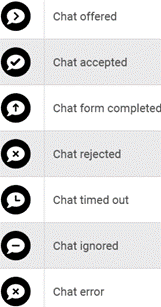
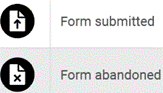
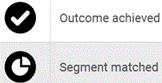
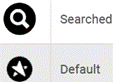
Genesys Cloud CX lets you view journey information associated with the completed interactions.
To access an interaction detail page, click on the interaction from one of the following views:
Interactions View
My Interactions View
Agent Interaction Detail View
Queue Activity Detail View
Queue Interaction Detail View
The Customer Journey Tab
To access the GPE journey information on the interaction detail page, click the Customer Journey tab. If an interaction does not have the GPE journey data, this tab does not appear.
Different sections on this page provide information about the customers or visitors and their journeys.
Visitor details
Session details
Session journey
Segment assigned
The interaction detail page also contains visitor information sections such as Location, Device Type, Operating System, and Browser Type.
Genesys Cloud CX: AI – Predictive Engagement – Reporting and Analytics
GPE Analytics in Genesys Cloud CX consists of reporting tools that process data with precision. GPE uses Coordinated Universal Time (UTC) as the standard of precision for time-sensitive information.
GPE Analytics provides real-time data to steer business performance.
In the context of GPE, the term 'analytics' refers to gathering customer engagement data to better understand customer trends and business activities, presenting them as distinct reports.
These reports include:
1 Journey Action Map Performance report
2 Visitor Activity report
3 Journey Segment Performance report
4 Journey Outcome Performance report
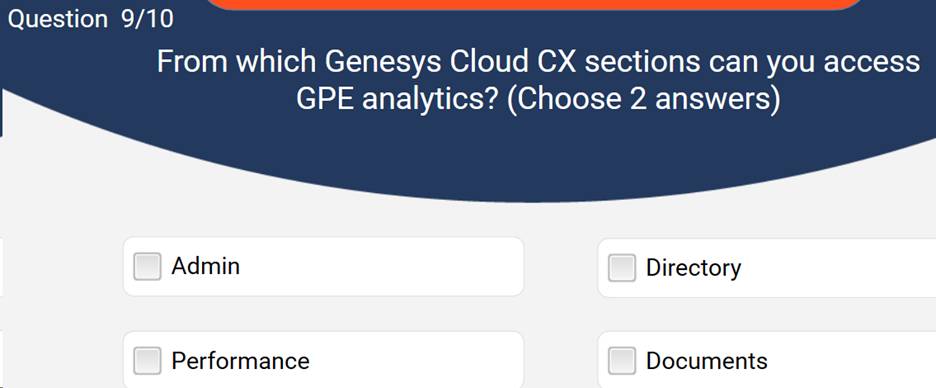
GPE Analytics can be accessed in the following ways:
1 Orchestration > Predictive Engagement
2 Analytics > Analytics Workspace > Journey (recommended navigation)
In the Journey section, the GPE data can be customized and reported on to find segment matches, action maps, outcomes achieved, and more.
Action maps represent the steps taken to achieve a particular business result.
The Journey Action Map Performance report displays several metrics about the effectiveness of your action maps in achieving an intended result. It allows you to see details such as how visitors responded to an engagement offer when an action map triggered a specific event.
By default, the exported CSV file name includes the current system date as per the time stamp unless you modify the file name while exporting.
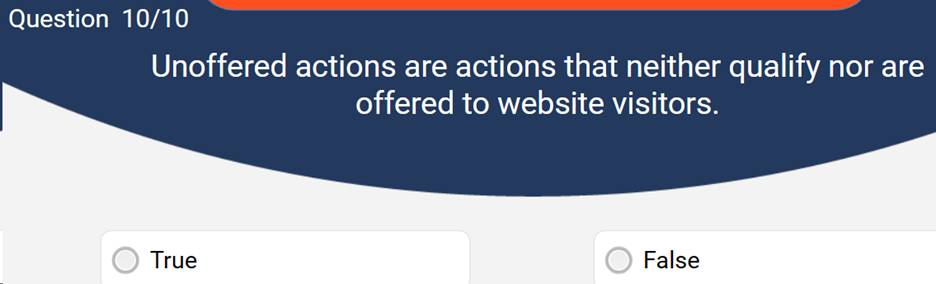
Unoffered actions or blocked offers are actions that qualify but are not offered to website visitors. A qualified action can be blocked for several reasons. By clicking the number under the Blocked field in the Journey Action Maps report, the Blocked Actions report lists the reasons behind all qualified blocked actions.
The blocked status of an action could be a temporary or a permanent state.
The Journey Action Map Performance report metrics indicate how the action maps fired based on their performance. In general, these metrics denote the numbers under each state.
The states show the result of the performance of action maps. The different states include but are not limited to Qualified, Offered, Accepted, and Started.
The following are the metrics shown on a typical action map report:
1 The number of actions offered, accepted, blocked, and rejected in each action map
2 The number of individual outcomes impacted by each action map
3 The number of individual outcomes impacted after the action map was engaged
It is important to note that not all states apply to all action map types. For example, content offers, web chat offers, and web messaging offers could share some states. However, content offers and web messaging offers only use a subset of the states.
GPE collects visitor-related statistical data, such as the number of visitors to your website for a given period. The collected data helps you analyze trends and offer content based on visitor engagement. This and more statistical information, such as the device (Desktop/Mobile/Tablet/other) used by customers to access the website, can be obtained from the Visitor Activity report.
Following are possible reasons for discrepancies between qualified and offered web engagements (web chat, web messaging, content offer):
1 URL conditions specified but not met
2 Another action map qualified and offered a web engagement
3 No agents available
4 Cannot answer chats within the service level
5 Outside of business hours
6 Visitor left your website
7 Frequency capping
Reasons a qualified action is not offered
The Blocked Actions report lists the reasons for the qualified action not being offered. Next to each reason the action is blocked, the following details appear:
Sessions – The number of sessions during which the action is blocked. If an action is blocked multiple times during a single session, the session number is retained at one.
Count – The number of times an action is blocked. For example, if an action was blocked 30 times during a single session, the count number is 30.
Reason Description
Page URL condition The action map did not meet the page URL filters specified in the action map.
SLA throttle The queue was saturated to capacity which prevented the action being offered
Existing offer An offer had already been rolled out to the customer at the time the action map qualified.
Future offer The action map specifies the future time period for the action to be offered and the action is not set to 'Immediately'.
Multiple offers The customer qualified for more than one action and received an offer in another action with a higher priority than this action. If all action maps have the same priority, the actions are offered in no particular order.
No agents The action map specifies that the action be offered only upon agent availability.
Frequency cap The visitor qualifies for and receives an offer on another action map.
These segments and their performance can be found on the Journey Segments Summary view. This view shows the count of segment matches, the action maps used in the segment, and the outcomes achieved by segments. As an example, it can show the number of outcomes that were achieved by session segments and customer segments using an action map.
From this view, you can download a Journey Segment Performance report. This report displays the configured segments and the applicable metrics for each group of visitors.
The Journey Outcome Performance report provides the statistical performance data of outcomes after visitor engagement.
The view that shows these statistical data is called the Journey Outcomes Summary view. Here, you can view the interconnection between outcomes, action maps, and segments, along with the metrics on the outcomes of visitors achieving your business objectives.
Some of those data include the number of action maps that have assisted in an outcome achievement, the number of segments that achieved the outcome, the date the outcome was last modified, and more. This data can then assist you in configuring outcomes to suit your business needs.
Reports:
Performance>Workspace>Journey>Journey Action Map Performance
Performance>Workspace>Journey>Journey Outcome Performance
Performance>Workspace>Journey>Journey Segment Performance
A content offer is a web action GPE provides to engage visitors and encourage interaction.
A potential customer lands on the website to look into purchasing a streaming package. GPE recognizes this and pops a content offer. (Picture, display name, offer content and action button)
GPE gathers the required content offer metrics for a 3-month interval and shows it in Predictive Engagement / Action Library.
If the event triggered content offer Qualified=No then the offer status is Errored.
Qualified: Offers that fit the needs of an ideal website visitor
Offered: The Proactive invitations offered when a visitor's activity qualifies an action map. Also, it shows how often GPE presents each content offer to visitors.
Errored: Errors occurring in the widget prevent engagements from occurring.
Note: This event does not have a corresponding metric in the Action Map Performance report.
Accepted: Accepts the invitation through a visitor action.
Note: Accepted is a terminal state.
Rejected: Rejects the invitation through corresponding visitor actions such as Close and Not Interested.
Note: Rejected is a terminal state.
Ignored: Ignores the invitation whenever visitors navigate away from the content offer invitation.
Note: Ignored is a terminal state. It does not have a corresponding metric in the Action Map Performance report.
Certain states are considered terminal or final in the content offer lifecycle. This is to ensure the same content offer is not offered again, or a content offer is not offered at all when a visitor is not interested. For example, content offers are not offered to visitors navigating web pages, resulting in terminal states.
The CTR (click-through rate) column in the Action Library page shows the percentage of how often visitors click on a content offer.
KNOWLEDGE CHECK
Multiple Choice
The maximum date range for hourly granularity within an action map report is _______.
365 days
One month
14 days
One day
C
A qualified action is always offered.
True
False
F
True or False
You can view the action map and outcome details for a particular segment in the Journey Segments report, if available.
True
False
T
Multiple Select
Select the correct terminal states. (Select all answers that apply)
Accepted
Rejected
Errored
Ignored
ABD
Multiple Choice
1. Mary is an administrator who intends to create an action map. On the organization's website, she deploys the Genesys Predictive Engagement tracking snippet. Which of the following features requires this deployment to be used?
Segment match
User activity
Schedules
Content Offer
B
True or False
2. You can combine segment match and user activity to create a trigger for an action map.
True
False
B
True or False
3. An individual action map can be offered to a visitor over multiple sessions.
True
False
T
Multiple Choice
4. Which of the following action types do not engage the visitor directly?
Web Chat
Web Messaging
Content Offer
Advanced Orchestration
D
Multiple Choice
5. How many days will it take to view the estimated reach data for your action map?
7 days
5 days
3 days
1 day
A
True or False
1. While creating a segment with multiple conditions, the segment matches a visitor even when one condition matches.
True
False
F
Multiple Choice
2. The ____ attribute identifies visitors based on characteristics like location, browser, device type, and so on.
Visitor Journey
Campaign
Visitor
Custom
C
Multiple Choice
3. From the Outcomes page, you can view real-time outcome scores for visitors by clicking _____ .
Outcomes
Create outcome
Live Now
Action Maps
C
Multiple Choice
4. Select the following web tracking settings you can configure.
Allowed Domains
Site Search Settings
Exclude IP Addresses
All the above
D
5. Match the following:
Configure commands and events
Configure Genesys Messenger and deploy it on your website
Configure segments
To track website activity.
To use web messaging.
To identify visitors based on their shared characteristics.
True or False
1. The higher the timeout value, the higher the chances of interactions waiting in the queue even though agents are available.
True
False
T
Multiple Choice
2. Which among the following is not a routing fallback scenario?
Interaction timed out
Customer disconnection
Predictive routing failed due to an error
One of the test modes is enabled
B
Multiple Choice
3. Which routing mode routes interactions using predictive routing 80% of the time.
Run in comparison test mode
Use for all queue interactions
Ongoing value monitoring
Preferred agent
C
During which of these predictive routing phases is the queue optimization potential determined?
Comparison Test
Benefit Assessment
Queue Identification
Queue Comparison
B
True or False
It is mandatory to use the free trial before purchasing the full version of the Genesys predictive routing product feature.
True
False
B
GPR cannot be applied to queues with newly joined agents as their scores are not yet determined.
True
False
F
How many days of data should be present to activate GPR?
90 days
95 days
99 days
180 days
A
Practice Test Answers
1 Running a benefit assessment incurs no cost.
Answer: True
2 To utilize predictive routing to its best potential, at least _____ days of data is required.
Answer: 90
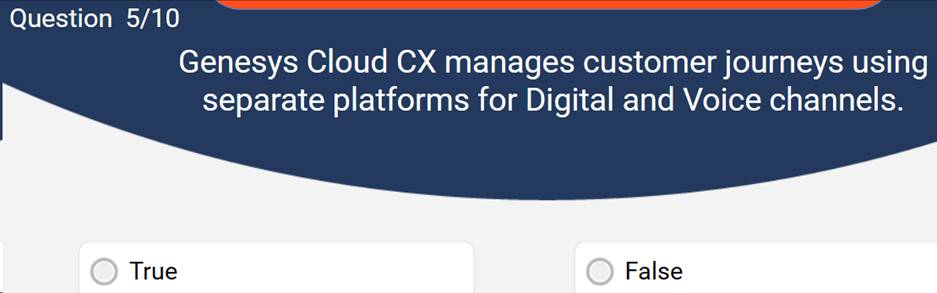
3 Genesys Cloud CX manages customer journeys using separate platforms for Digital and Voice channels.
Answer: False
4__________ identify visitors based on characteristics like location, browser, device type, etc.
Answer: Visitor attributes
5 While routing an interaction to an agent, how does Genesys Cloud CX route the interaction if the timeout period expires?
Answer: The interactions are routed using the predefined fallback routing method.
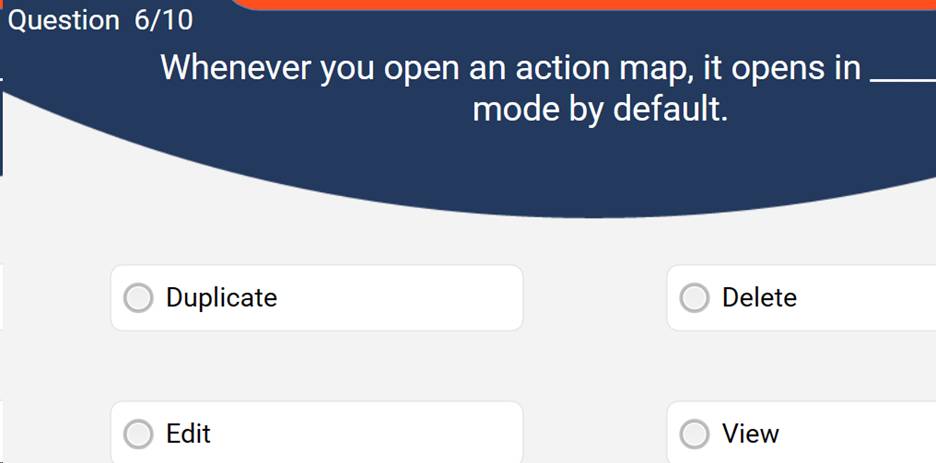
6 Whenever you open an action map, it opens in ___________ mode by default.
Answer: Edit
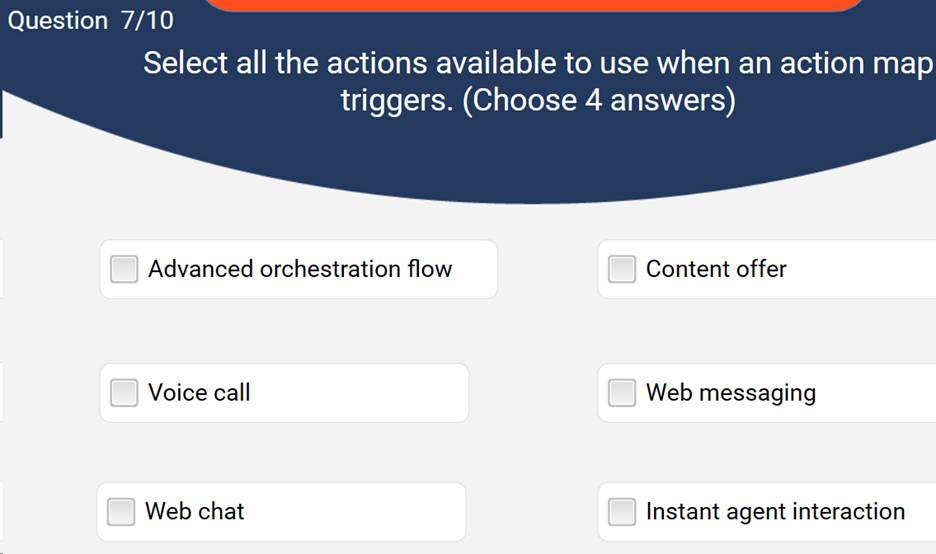
7 Select all the actions available to use when an action map triggers.
Answer: Web messaging, Web chat, and Content offer
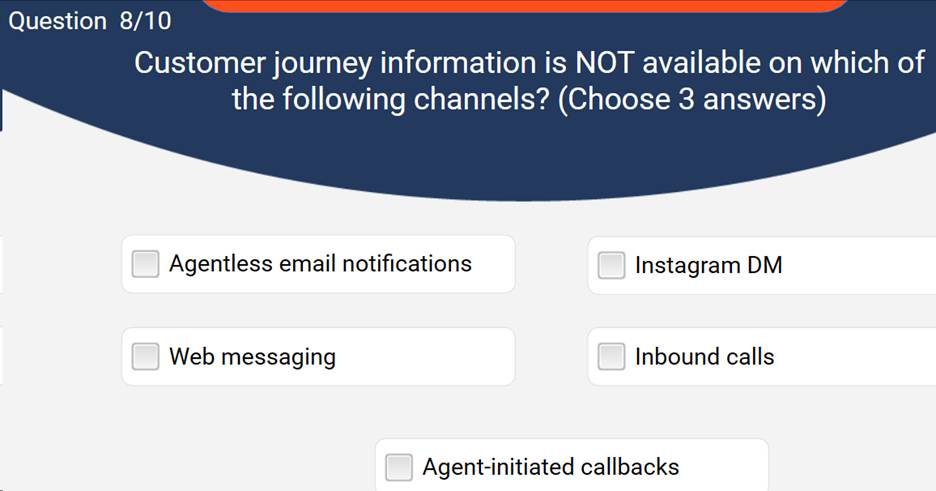
8 Customer journey information is NOT available on which of the following channels?
Answer: Agent-initiated callbacks, Agentless email notifications, and Instagram DM
9 From which Genesys Cloud CX sections can you access GPE analytics?
Answer: Performance and Admin
· 10
10 Unoffered actions are actions that neither qualify nor are offered to website visitors.
Answer: False
#Certification------------------------------
Francis Guo
NA
------------------------------